Vendors
Everyone you’ve hired or gotten quotes from, in one place.
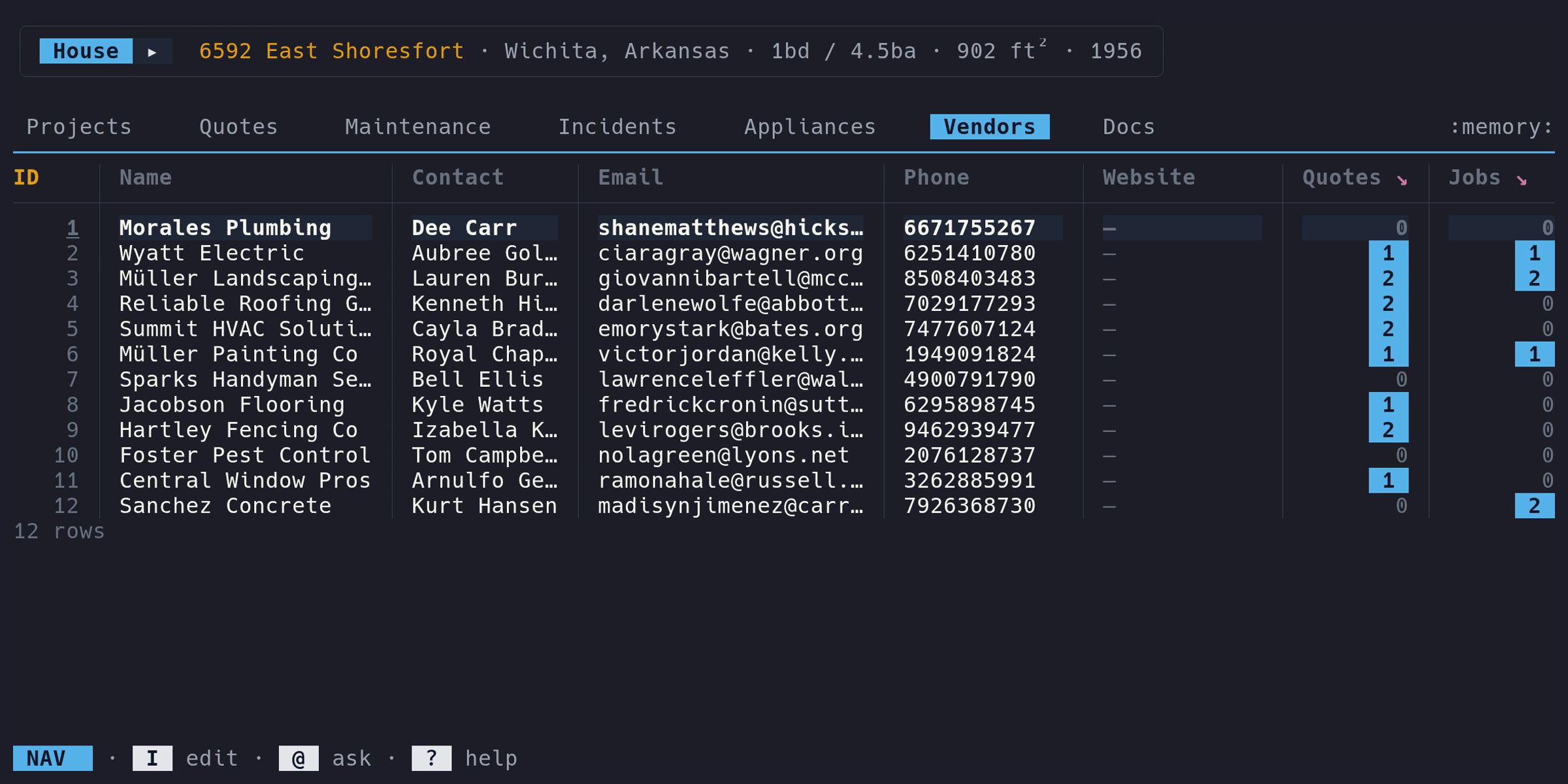
Columns#
| Column | Type | Description | Notes |
|---|---|---|---|
ID | auto | Auto-assigned | Read-only |
Name | text | Company or person name | Required, unique |
Contact | text | Contact person | Optional |
Email | text | Email address | Optional |
Phone | text | Phone number | Optional |
Website | text | URL | Optional |
Quotes | drill | Number of linked quotes | Press enter to view linked quotes |
Jobs | drill | Number of linked service log entries | Press enter to view linked jobs |
How vendors are created#
Vendors can be created in two ways:
- Directly on the Vendors tab: enter Edit mode (i), press a
- Implicitly when adding a quote or service log entry – type a vendor name and micasa finds or creates the record
Editing a vendor#
Navigate to the Vendors tab, enter Edit mode (i), and press e on the cell you want to change, or E to open the full edit form. Edits to a vendor’s contact info propagate to all quotes and service log entries that reference that vendor.
Cross-tab navigation#
The Vendor column on the Quotes tab is a live link (shown with → in the header). Press enter on
a vendor name in the Quotes table to jump to that vendor’s row in the Vendors
tab.
Drill columns#
The Quotes and Jobs columns show how many quotes and service log entries
reference each vendor. In Nav mode, press enter to drill into a detail
view showing those records.
Notes#
The edit form includes a Notes textarea for free-text annotations about the
vendor. Notes are stored on the vendor record but don’t appear as a table
column.
Incidents#
Incidents can optionally link to a
vendor via the Vendor column, tracking who you’ve called or hired for a
particular issue.
Deletion#
Vendors with active quotes, service log entries, or incidents cannot be deleted – remove the referencing records first. Once a vendor has no active references, it can be soft-deleted like any other entity.