Quotes
The Quotes tab helps you compare vendor quotes for your projects.
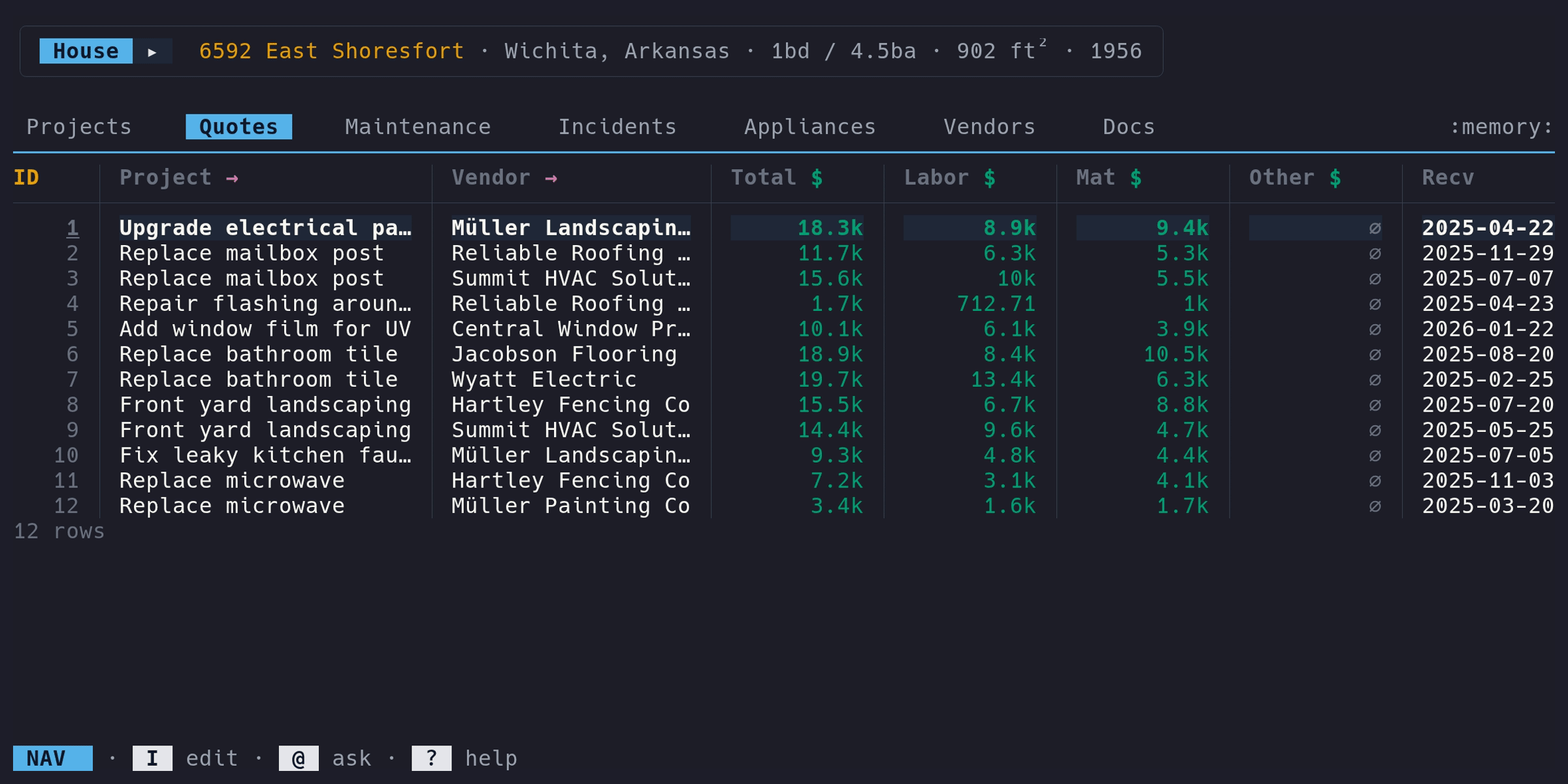
Prerequisites#
You need at least one project before you can add a quote, since every quote is linked to a project.
Adding a quote#
- Switch to the Quotes tab
- Enter Edit mode (i), press a
- Select a project, enter vendor details, then cost breakdown
Fields#
| Column | Type | Description | Notes |
|---|---|---|---|
ID | auto | Auto-assigned | Read-only |
Project | link | Linked project | Shows → in header – press enter to jump |
Vendor | link | Vendor name | Required. Shows → in header – press enter to jump to vendor |
Total | money | Total quote amount | Required |
Labor | money | Labor portion | Optional |
Mat | money | Materials portion | Optional |
Other | money | Other costs | Optional |
Recv | date | Date received | Date input |
The edit form also includes a Notes textarea for free-text annotations about
the quote. Notes are stored on the quote record but don’t appear as a table
column.
Vendor management#
When you add a quote, you enter a vendor name. If a vendor with that name already exists, micasa links to the existing record. If not, it creates a new one.
The vendor form also collects optional contact info: contact name, email, phone, and website. These are stored on the vendor record and shared across all quotes and service log entries for that vendor.
Cost comparison#
To compare quotes for a project, sort the Quotes tab by the Project column
(s on the Project column header) to group quotes by project. Then compare
the Total, Labor, Mat, and Other columns across vendors.
Project link#
The Project column is a foreign key. In Nav mode, press enter on the
Project cell to jump to the linked project in the Projects tab.