Maintenance
Track recurring upkeep tasks and their service history.
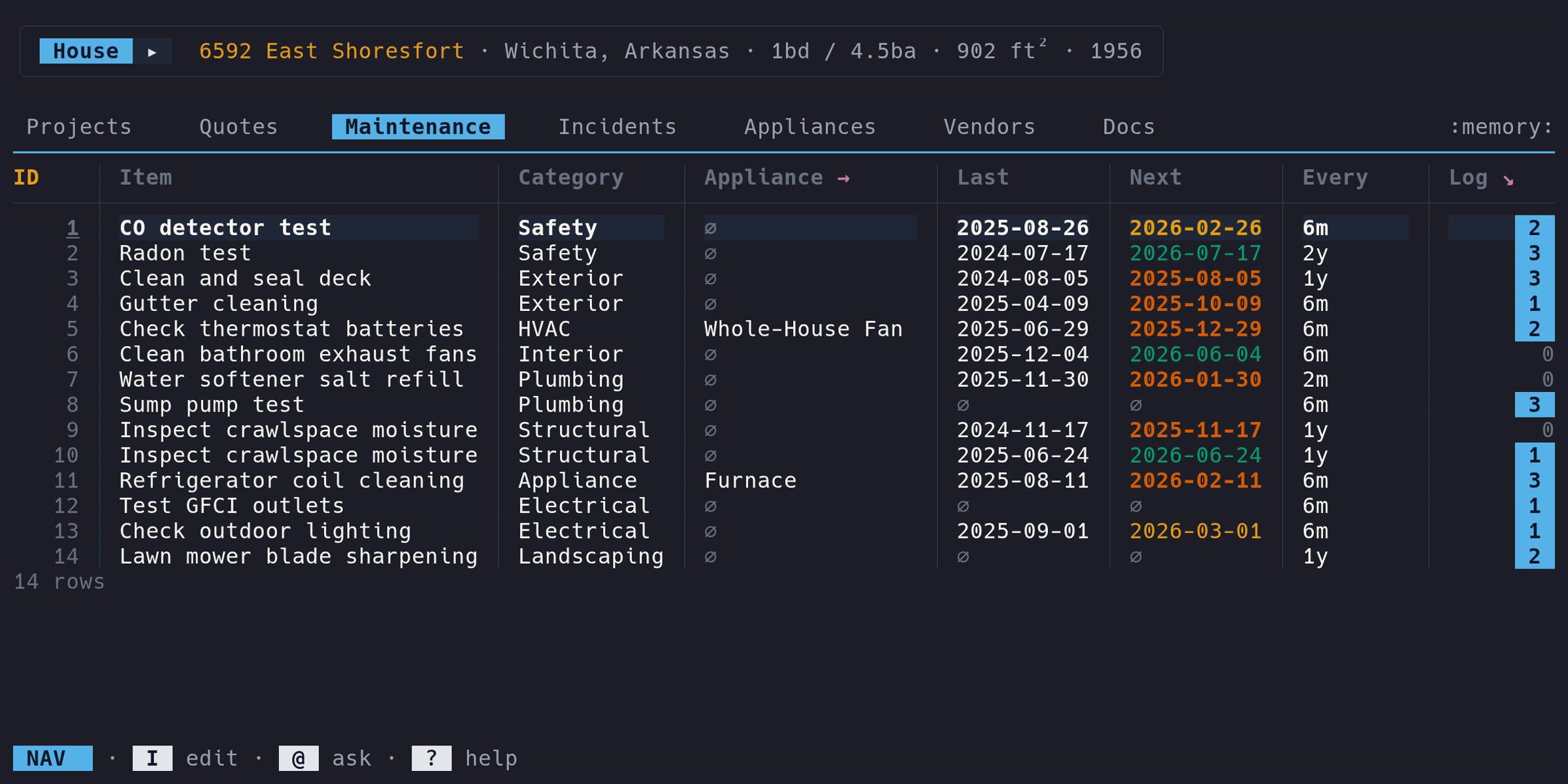
Adding a maintenance item#
- Switch to the Maintenance tab
- Enter Edit mode (i), press a
- Fill in the schedule form
The Item name is required. Set a Category, optionally link an
Appliance, and set the Last serviced date and Every (interval months) to
enable auto-computed due dates.
Fields#
| Column | Type | Description | Notes |
|---|---|---|---|
ID | auto | Auto-assigned | Read-only |
Item | text | Task name | Required. E.g., “HVAC filter replacement” |
Category | select | Task type | Pre-seeded categories (HVAC, Plumbing, etc.) |
Appliance | link | Linked appliance | Optional. Press enter to jump to appliance |
Last | date | Last serviced date | Date input |
Next | urgency | Next due date | Auto-computed: Last + Every. Color-coded by proximity |
Every | number | Interval | Compact format (e.g., “6m”, “1y”, “2y 6m”) |
Log | drill | Service log count | Press enter to open |
Next due date#
The Next column is computed automatically from Last serviced +
Every (interval months). You don’t edit it directly. If either Last or
Every is empty, Next is blank.
Items that are overdue or coming due soon appear on the Dashboard with urgency indicators.
Service log#
Each maintenance item has a service log – a history of when the work was
actually performed. The Log column shows the entry count.
To view the service log, navigate to the Log column in Nav mode and press
enter. This opens a detail view with its own table:
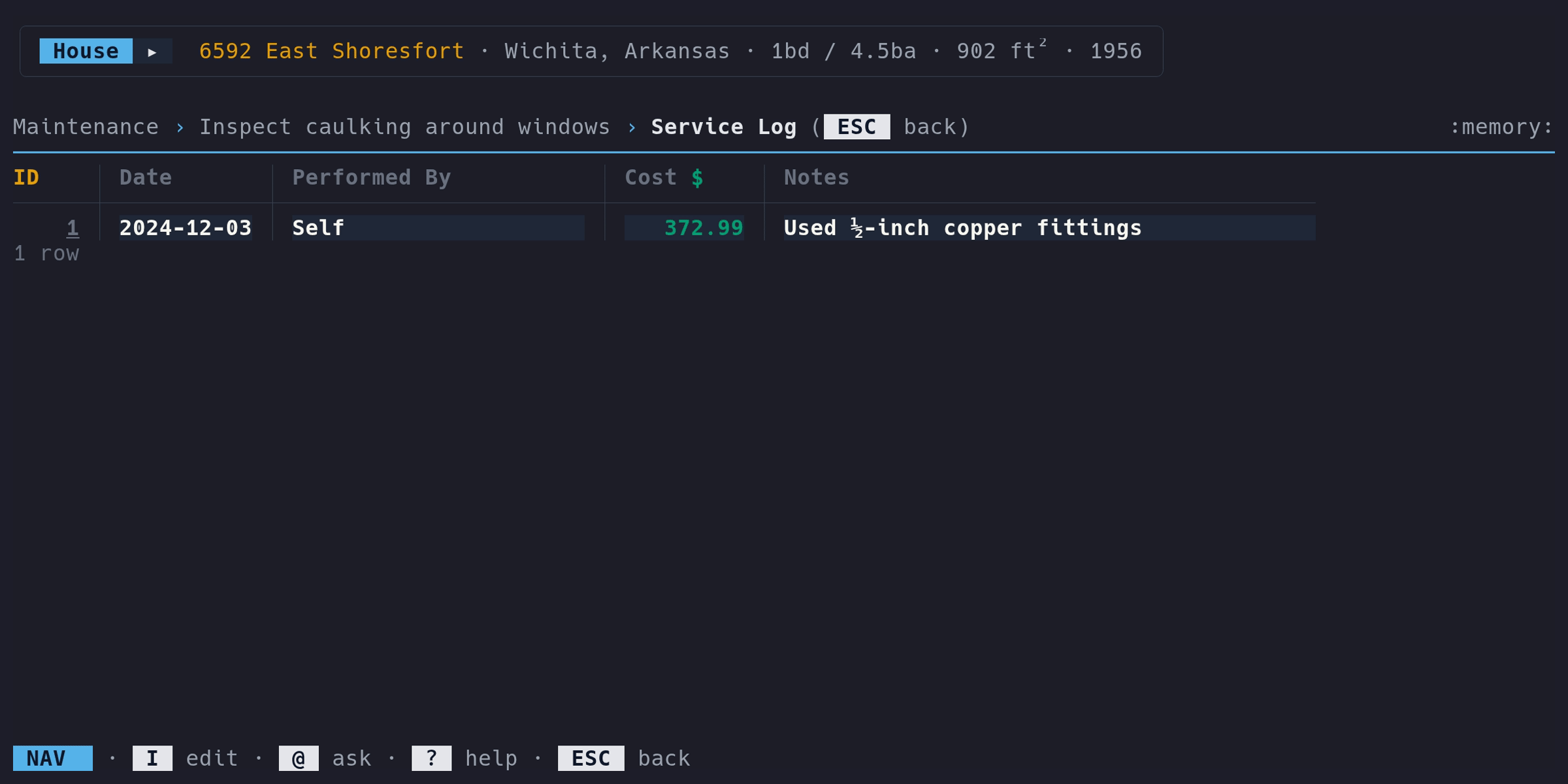
| Column | Type | Description |
|---|---|---|
ID | auto | Auto-assigned |
Date | date | When the work was done (required) |
Performed By | link | “Self” or a vendor name. Press enter to jump to vendor |
Cost | money | Formatted in your configured currency |
Notes | notes | Free text. Press enter to preview |
The detail view supports all the same operations as a regular tab: add, edit, delete, sort. Press esc to close the detail view and return to the Maintenance table.
Vendors in service logs#
The “Performed By” field is a select. The first option is always “Self (homeowner).” All existing vendors appear as additional options. To add a new vendor, create one via the Quotes form or Vendors tab first – vendors are shared across quotes and service logs.
The Performed By column is a foreign key link. When at least one log
entry was performed by a vendor, the header shows →. In Nav mode,
press enter on a vendor name to jump to that vendor’s row in the
Vendors tab. Pressing enter on “Self” shows a brief status message
since there is nothing to follow.
Additional form fields#
The edit form includes fields that don’t appear as table columns:
| Field | Type | Description |
|---|---|---|
Manual URL | text | Link to the product or service manual |
Manual notes | text | Free-text manual excerpts or reminders |
Cost | money | Estimated or typical cost per service. Configured currency |
Notes | text | General notes about this maintenance item |
These fields are accessible when editing a maintenance item (press E from any
column, or e on the ID column, to open the full form).
Appliance link#
When a maintenance item is linked to an appliance, the Appliance column shows
the appliance name. This column is a foreign key link – in Nav mode, press
enter on it to jump to that appliance in the Appliances tab.