Documents
Attach files to your home records – warranties, manuals, invoices, photos.
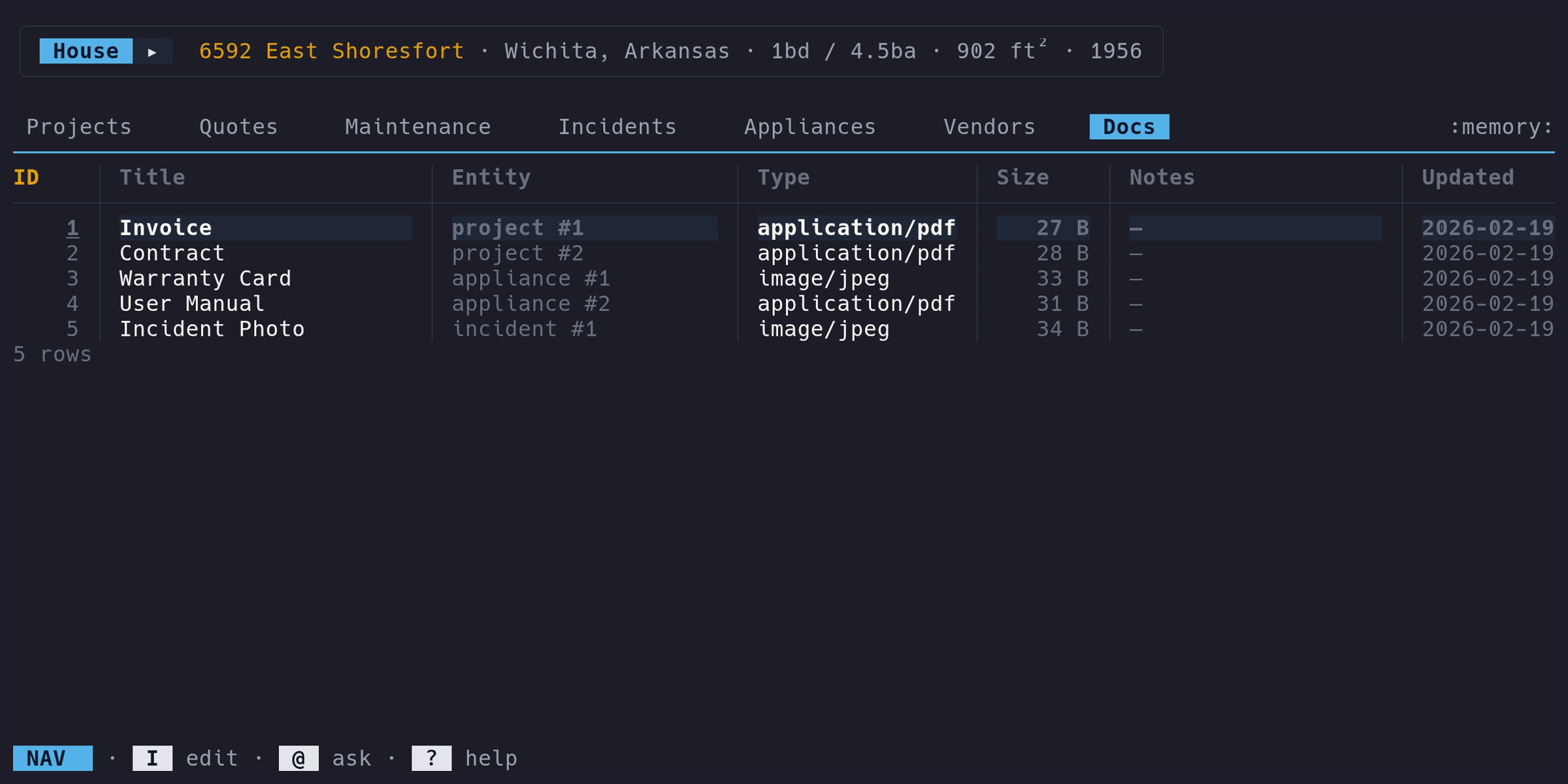
Adding a document#
- Switch to the Docs tab (f to cycle forward)
- Enter Edit mode (i), press a
- Fill in a title and optional file path, then save (ctrl+s)
If you provide a file path, micasa reads the file into the database as a BLOB (up to 50 MB). The title auto-fills from the filename when left blank.
Quick add with extraction#
Press A (shift+a) on the Docs tab to open a streamlined add form that picks a file and immediately runs the extraction pipeline. This is the fastest way to import a document when you want OCR and LLM hints. The file picker hides dotfiles by default; press H to toggle their visibility.
You can also add documents from within a project or appliance detail view –
drill into the Docs column and press a. Documents added this way are
automatically linked to that record.
Fields#
| Column | Type | Description | Notes |
|---|---|---|---|
ID | auto | Auto-assigned | Read-only |
Title | text | Document name | Required. Auto-filled from filename if blank |
Entity | text | Linked record | E.g., “project #3”. Only shown on top-level Docs tab |
Type | text | MIME type | E.g., “application/pdf”, “image/jpeg” |
Size | text | File size | Human-readable (e.g., “2.5 MB”). Read-only |
Model | text | Extraction model | LLM model that produced the extraction. Read-only |
Ops | number | Operation count | Number of LLM-proposed operations. Press enter to explore |
Notes | notes | Free-text annotations | Press enter to preview |
Updated | date | Last modified | Read-only |
File handling#
- Storage: files are stored as BLOBs inside the SQLite database, so
micasa backup backup.dbbacks up everything – no sidecar files - Size limit: 50 MB per file
- MIME detection: automatic from file contents and extension
- Checksum: SHA-256 hash stored for integrity
- Cache: when you open a document (o), micasa extracts it to the XDG cache directory and opens it with your OS viewer
Entity linking#
Documents can be linked to any record type: projects, incidents, appliances, quotes, maintenance items, vendors, or service log entries. The link is set automatically when adding from a drill view, or can be left empty for standalone documents.
The Entity column on the top-level Docs tab shows which record a document
belongs to (e.g., “project #3”, “appliance #7”).
Searching documents#
Press ctrl+f on the Docs tab to open a search overlay. It searches across document titles, notes, and extracted text using SQLite’s FTS5 full-text search engine.
Results appear instantly as you type. Each result shows the document title, its entity association (if any), and a snippet of matched text with highlighted terms. Use up/down (or ctrl+k/ctrl+j) to navigate results, enter to jump to the document, and esc to close. Clicking a result also navigates to it.
The search uses the Porter stemmer, so related word forms match each other
(e.g., searching “painting” also finds “painted” and “paint”). Queries are
case-insensitive. For advanced users, FTS5 operators like AND, OR, NOT,
quoted phrases, and * wildcards are supported.
Drill columns#
The Docs column appears on the Projects and Appliances tabs, showing
how many documents are linked to each record. In Nav mode, press enter to
drill into a scoped document list for that record.
Re-extraction#
In Edit mode, press R on a document row to re-run the extraction pipeline. When the document already has extracted text from a previous run, OCR is skipped and the pipeline jumps straight to the LLM step – this is much faster for re-extraction with a different model or after updating extraction settings.
If the document was soft-deleted, accepting extraction results automatically restores it.
Extraction pipeline brewing#
When you save a document with file data, micasa runs a three-layer extraction pipeline to pull structured information out of the file. This pipeline is under active development – results vary by document type, quality, and available tools. Each layer is independent and degrades gracefully when its tools are unavailable.
Layer 1: text extraction#
Runs immediately during save. Extracts selectable text from PDFs using
pdftotext (from poppler-utils) which preserves reading order and table
layout. Plain-text files are read directly. Images skip this layer entirely.
Layer 2: OCR#
Triggers automatically when text extraction returns little or no text (scanned
PDFs) or when the file is an image (PNG, JPEG, TIFF, etc.). Requires
tesseract and at least one image acquisition tool to be installed. If these
tools are missing, OCR is silently skipped.
For PDFs, micasa tries three image acquisition strategies in order:
pdfimages– extracts embedded image blobs directly (fastest, best quality for scanned PDFs)pdftohtml– renders pages to PNG (catches vector-drawn content thatpdfimagesmisses)pdftoppm– full 300 DPI rasterization (slowest, always works)
Each fallback only runs if the previous tool is missing or produced no usable images (filtered by a 10 KB minimum size). The overlay shows which tool was used and how many images it produced, followed by per-page OCR progress.
Layer 3: LLM extraction#
When an LLM is configured, micasa sends the extracted text to a local model with a JSON Schema constraint that produces structured database operations (creates and updates) for vendors, quotes, maintenance items, appliances, and the document itself. The operations are validated against a strict allowlist before display.
When no LLM is configured (or when OCR/text extraction alone is sufficient), you can still accept the text and OCR results without running the LLM step. The extracted text is saved to the document for full-text search regardless.
This feature is early-stage. Results vary significantly by model, document type, and text quality. Invoices and quotes with clear line items tend to work best; complex multi-page documents or poor OCR output often produce incomplete or incorrect operations. Always review the proposed changes in the preview before accepting.
The results appear as a tabbed table preview below the pipeline steps – one tab per affected table, using the same column layout as the main UI. The user reviews proposed changes and explicitly accepts before anything touches the database. The LLM never writes directly. Press r to rerun the LLM step if the first result is poor.
The extraction model can be configured separately from the chat model. See
Configuration for the
[extraction] section.
Extraction overlay#
An overlay shows real-time progress during OCR and LLM extraction. Each step displays a status icon, elapsed time, and detail (page count, character count, model name). The overlay has two modes:
Pipeline mode (default): navigate steps, expand logs, review the dimmed operation preview below.
Explore mode (press x): full table navigation of the proposed operations. Pipeline steps dim and the table preview becomes interactive with row/column cursors and tab switching. Press x or esc to return to pipeline mode.
When extraction completes successfully, press a to accept the results and apply them. On error the overlay stays open showing which step failed. Press esc at any time to cancel and close.
| Key | Action |
|---|---|
| a | Accept results (when done, no errors) |
| ctrl+b | Background the extraction (continue working while it runs) |
| esc | Cancel / exit explore mode |
| j/k | Navigate steps (pipeline) or rows (explore) |
| h/l | Navigate columns (explore) |
| b/f | Switch tabs (explore) |
| enter | Expand/collapse step logs |
| r | Rerun LLM step |
| x | Toggle explore mode |
See Keybindings for the full reference.
Requirements#
Each pipeline layer depends on external tools. All are optional – the document always saves regardless of which tools are installed.
| Pipeline step | File types | Tools needed | Without it |
|---|---|---|---|
| Text extraction | pdftotext | No digital text extracted | |
| Text extraction | text/* | (none) | (always available) |
| OCR | Scanned PDF | tesseract + (pdfimages, pdftohtml, or pdftoppm) | OCR skipped |
| OCR | Images (PNG, JPEG, TIFF, …) | tesseract | OCR skipped |
| LLM extraction | Any with extracted text | Ollama (or compatible) | No structured extraction attempted |
pdftotext and pdftoppm ship together in the poppler utilities package.
Installing dependencies#
| Platform | Command |
|---|---|
| Ubuntu / Debian | sudo apt install poppler-utils tesseract-ocr |
| Fedora / RHEL | sudo dnf install poppler-utils tesseract |
| Arch | sudo pacman -S poppler tesseract |
| macOS (Homebrew) | brew install poppler tesseract |
| Windows (MSYS2) | pacman -S mingw-w64-x86_64-poppler mingw-w64-x86_64-tesseract-ocr |
| Nix | nix shell 'nixpkgs#poppler-utils' 'nixpkgs#tesseract' |
The micasa dev shell (nix develop) includes both tools automatically.
For the LLM step, install Ollama and pull a model
(a small model like qwen2.5:7b works well). See
Configuration for the
[extraction] section.
Ops tree overlay#
Press enter on the Ops column to open an interactive JSON tree
showing the raw LLM-proposed operations stored with the document. The tree uses
box-drawing characters and per-type syntax coloring (strings, numbers, booleans,
null).
| Key | Action |
|---|---|
| j / k | Move cursor down/up |
| enter / l | Expand node |
| h | Collapse node (or jump to parent) |
| g / G | Jump to first/last visible node |
| esc | Close overlay |
Clicking a tree node toggles its expand/collapse state.
Inline editing#
In Edit mode, press e on the Title or Notes column to edit inline. Press
e on any other column (or E from any column) to open the full edit form.
The file attachment cannot be changed after creation.